NEET UG Document Upload Guide: Photo, Signature, Thumb Impression, and PDF Proofs
Step-by-step NEET UG upload guide for photo, postcard image, signature, thumb impression, and document clarity checks before final submit.
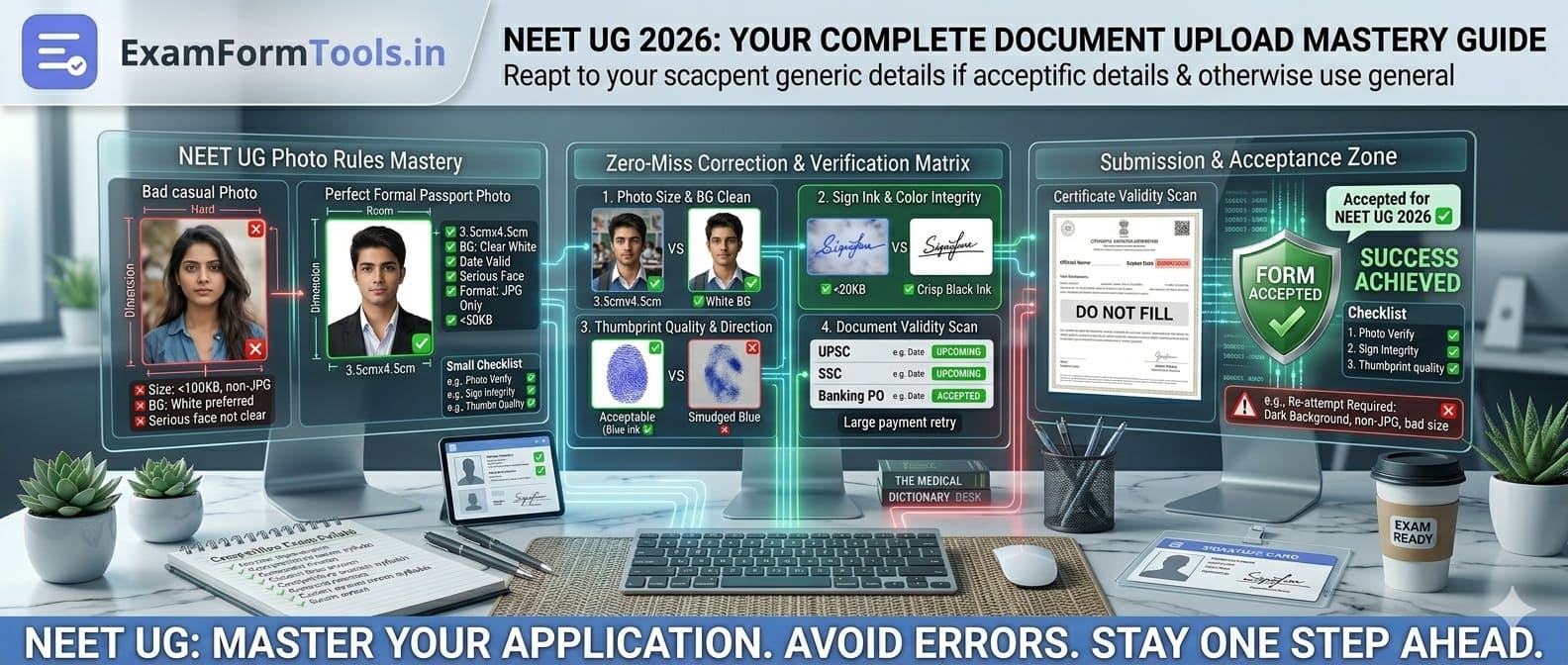
I remember sitting with my cousin last year when she was filling out her NEET UG form. Smart kid, stellar grades, incredibly focused on her preparation. But when it came to uploading documents, she almost had a breakdown. Her photo kept getting rejected, the thumb impression looked smudged on screen, and the signature file was somehow rotated 90 degrees. After three frantic days of fixing and re-uploading, she got it right. But those three days? Pure stress she didn’t need during exam prep.
NEET UG form submission isn’t just about entering your details and hitting submit. It’s detail-heavy, meticulous, and honestly, a bit unforgiving. A small mistake in photo quality, thumb impression clarity, or document readability can trigger correction pressure at the worst possible time, right when you should be focusing on revising Organic Chemistry or Human Physiology, not wrestling with file compression tools.
This guide helps you prepare uploads cleanly from day one, so you don’t lose sleep over technical rejections.
Keep These Assets Ready (And I Mean Actually Ready)
Before you even open the NEET application portal, gather these documents and save them in one dedicated folder. I’m serious about the dedicated folder part. Don’t scatter them across Desktop, Downloads, and your phone gallery.
Here’s what you need:
- Passport-size photo (recent, not that one from 10th grade)
- Postcard-size photo (check the current bulletin, some years they ask for it, others don’t)
- Signature image (clean, crisp, on white paper)
- Thumb impression image(s) as required (usually left thumb, but verify)
- Class 10 marksheet or birth certificate for age proof
- Category certificate if you’re applying under reserved category
- PwD certificate if applicable
Always, and I mean always, check the latest official NTA bulletin for the current cycle specifics. Requirements can shift slightly year to year. What worked for your senior last year might have a small tweak this year. Don’t assume. Verify.
One practical tip I learned from a coaching center admin: name your files clearly. Use something like “NEET_Photo_2026_YourName.jpg” instead of “IMG_20260312.jpg”. When you’re uploading at 11 PM on deadline day (which, let’s be real, many of us do), you’ll thank yourself for this simple organization.
The Photo Situation: It’s Trickier Than You Think
Let me tell you about Rohan’s photo fiasco. He took a selfie against a white wall, thought it looked fine, uploaded it. Rejected. Why? The shadow from the window created a gradient background that the system flagged. He had to go to a professional studio, spend 200 rupees, and get it done properly.
Here’s what actually works for NEET photo uploads:
Background matters more than you think. Plain white or light gray. No textures, no shadows, no “mostly white” walls with a calendar in the corner. The automated system that processes these applications is looking for uniformity.
Recent means recent. Not your 11th standard annual day photo. Not last year’s passport photo if your appearance has changed significantly. Take a fresh photo within 3 months of application. If you got a haircut, grew a beard, or started wearing glasses regularly, update your photo accordingly.
Lighting should be even. This is where most home attempts fail. Natural lighting seems like a good idea until you realize it creates shadows under your chin or highlights one side of your face. If you’re doing it at home, take the photo during mid-morning when sunlight is indirect, or use two table lamps positioned at 45-degree angles on either side.
Facial expression: neutral and natural. Don’t smile with teeth showing, but don’t look like you’re attending a funeral either. A calm, neutral expression with both eyes clearly visible. Remove spectacles only if the bulletin specifically asks for it, otherwise keep them on if you wear them regularly.
File specifications are non-negotiable. Typically, NEET asks for 3.5 cm x 4.5 cm dimensions, 10-200 KB file size, JPG or JPEG format. The file size range is important. If your file is 9 KB or 201 KB, it’ll get rejected by the system before any human even looks at it.
Signature and Thumb Impression: The Biometric Puzzle
This is where things get unexpectedly complicated. You’d think signing on paper and scanning it would be straightforward. It’s not.
Signature Done Right
I watched a student spend an entire afternoon on this. She’d sign beautifully on paper, but when scanned, it looked either too faint or too pixelated. The issue? She was using a cheap ballpoint pen on notebook paper.
Here’s the process that actually works:
Use a black or blue pen with bold ink. Not a gel pen that spreads or bleeds. Not a faded ballpoint pen you’ve been using for months. A fresh, medium-tip marker or a fountain pen with good ink flow works best. Sign naturally, not too large, not too small, roughly 3-4 cm in width.
White, plain paper is essential. Not ruled paper where lines show through. Not slightly cream-colored paper. Bright white, preferably 90 GSM or higher, so your signature doesn’t bleed through.
Sign in the center with margins all around. Leave at least 1 cm space on all sides. This gives you cropping flexibility later. If your signature naturally touches the edge, the crop will look odd.
Scan at 200 DPI minimum. Higher is better for initial capture. You can compress later, but you can’t add detail to a low-resolution scan. If you don’t have a scanner, use a scanning app on your phone (Microsoft Lens, Adobe Scan, CamScanner), but ensure good lighting and hold your phone parallel to the paper, not at an angle.
Keep the crop straight and centered. This sounds obvious, but I’ve seen uploaded signatures that were slightly tilted or had uneven margins. Use any basic image editor to straighten and center it properly. The dimensions required are usually around 3.5 cm x 1.5 cm, 10-40 KB for NEET.
Thumb Impression: The Overlooked Detail
Most students treat this casually until it gets rejected. Thumb impressions need to be surprisingly clear for digital upload.
Use proper stamp pad ink, not the dried-out one from your school office. Go to a stationery shop and buy a fresh stamp pad. The ink should be dark blue or black (check bulletin for specific color requirement, it’s usually mentioned). When you press your thumb on the pad, the ink should coat evenly without being drippy.
Practice once on scrap paper. Don’t do your final impression on the first attempt. Test it. Press your thumb on the pad, then press it on scrap paper with even pressure for about 2 seconds. Check if the ridges are visible. If it’s too faint, apply more pressure. If it’s smudged, you used too much ink or moved your thumb while pressing.
Capture without smudges or glare. This is where the scanning part trips people up. If you scan with a regular flatbed scanner with the lid open, you might get shadows. Close the lid or cover with white paper. If you’re using a phone camera, avoid overhead lights that create glare. The ridges of your thumbprint should be distinctly visible, not a blurry blob.
Required dimensions are usually 3.5 cm x 1.5 cm, similar to signature. File size around 10-40 KB. Left thumb is standard for most exams, but verify from the bulletin.
Smart Compression Workflow (Not the “Compress Until It Fits” Disaster)
This is where most technical rejections happen. Students panic about file size and compress images until they’re unrecognable.
Let me walk you through what actually works. Last year, a student showed me her uploaded photo that got rejected. When I zoomed in, her face looked like a mosaic art project. She’d compressed a 5 MB photo down to 150 KB using maximum compression in a random online tool. The file size was within limits, but the quality was destroyed.
Here’s the right sequence:
Step 1: Start with High-Quality Capture
Whether it’s a photo, signature, or certificate scan, capture at high quality first. For photos, use the rear camera of a decent phone or a proper camera. For scans, use 200-300 DPI. Don’t start with a low-quality capture thinking you’ll enhance it later. You can’t.
Step 2: Resize to Required Dimensions FIRST
Before you touch compression, resize your image to the exact dimensions required. If NEET asks for 3.5 cm x 4.5 cm at 200 DPI, that’s approximately 276 x 354 pixels. Use any image editor (even MS Paint works, though Photoshop, GIMP, or online tools like Photopea are better) to resize first.
Why does this matter? If you compress a 4000x3000 pixel image down to 150 KB, you’re wasting compression quality on pixels you don’t need. If you resize first to the correct dimensions, the file size often naturally falls within the required range without much additional compression.
Step 3: Compress Gradually and Check
Don’t compress in one aggressive step. Use tools that let you control quality levels.
For JPEG images, use quality level 85-90 first and check the file size. Still too large? Try 80. Check again. The goal is to stay within the size limit while keeping quality high enough that text and features are clearly visible.
For PNG images (though NEET usually asks for JPG), you can convert to JPG which naturally compresses better, or use PNG compression tools that reduce color palette without visible quality loss.
Step 4: Validate Readability at 100% Zoom
This is the step most people skip. After compression, open your final file and zoom to 100% (actual size, not “fit to screen”). Can you see your facial features clearly? Can you read text on certificates? Are signature strokes clean without jagged edges? If yes, you’re good. If no, you’ve compressed too much. Go back and compress at a lighter level.
Step 5: Keep Backup Copies at Different Quality Levels
Save three versions: original high-quality, medium quality (slightly higher than needed), and final upload version. Store them in clearly labeled folders. If the upload gets rejected and you need to adjust, you can work from the medium quality version instead of starting from scratch or re-uploading a destroyed low-quality file.
PDF Document Compression: The Text Legibility Test
Category certificates, PwD certificates, and other supporting documents are usually uploaded as PDFs. NEET typically allows 100-300 KB for document PDFs.
The mistake most students make: they use aggressive PDF compression that turns text into an unreadable blur.
Here’s my rule: If you can’t comfortably read the text at 100% zoom on your screen, the verification officer won’t be able to either.
For PDFs:
Start with a clean scan. Scan documents in color at 200 DPI. Color preserves official stamps and seals better than grayscale. Make sure the document is flat and fully within the scanning area.
Use PDF compression tools with preview. Don’t use random online compressors blindly. Use tools that show you a before/after preview. Adobe Acrobat has good compression with quality control. SmallPDF, iLovePDF work too, but always download and check before uploading.
Text legibility is the priority. Certificates have small print, registration numbers, signatures, and stamps. All of these need to be clearly readable. If compression makes the issuing officer’s signature look like a smudge, that’s a problem during verification.
Keep aspect ratio and orientation correct. Sounds basic, but I’ve seen uploaded certificates that were sideways or squeezed. Rotate properly before converting to PDF.
Correction Window Strategy: Your Safety Net, Not Your First Plan
NEET provides a correction window, usually a few weeks after the initial application deadline. Many students treat the application casually, thinking “I’ll fix it in the correction window if needed.”
Bad strategy.
The correction window is for genuine errors you discovered after submission, not a second attempt at getting it right. Why? Because correction windows are short (typically 2-4 days), often crash due to high traffic, and some fields might not be editable at all.
After you submit your initial application, do this immediately:
Download and read the preview PDF line by line. Don’t just glance at it. Read every single field. Name, father’s name, mother’s name, date of birth, category, exam city preference, uploaded photo preview, signature preview. Check everything.
I know a student who submitted her form and closed the tab, relieved it was done. Two weeks later, during correction window, she noticed her mother’s name had an extra space that made it look weird. She tried to correct it, but the correction window portal was so overloaded it wouldn’t load. She spent the entire correction period stressed and couldn’t fix it. Luckily, it didn’t cause issues during verification, but the stress was avoidable.
Confirm uploaded image orientation and clarity. Sometimes images upload correctly but display rotated or cropped oddly in the preview. Check this immediately, not days later.
Verify category selection matches your certificate. If you uploaded an OBC certificate but accidentally selected General category in the dropdown, that’s a critical error. Catch it early.
Double-check exam city preferences. You listed them in order, but did they save in the right order? City preferences matter for hall ticket allocation.
Mark correction dates in your calendar with alerts. Set reminders two days before correction window opens, on the day it opens, and one day before it closes. This gives you multiple chances to access the portal during less crowded times.
Parent and Student Final Checklist (The 15-Minute Safety Audit)
Before you press that final submit button, do this 15-minute check together. If you’re a student handling it alone, ask a parent or an older sibling to sit with you for this part. A second pair of eyes catches things your stressed brain misses.
Verify identity details from original documents. Pull out the Class 10 marksheet or birth certificate physically. Compare name spelling, father’s name spelling, date of birth, mother’s name. Match character by character. “Kumar” vs “Kumarr”, “Gupta” vs “Guptta” – these small typos cause huge problems.
Check school details against your school leaving certificate. School name should match exactly as it appears on your official documents. UDISE number should be correct (you can verify this on the UDISE portal if you have doubts).
Try opening every uploaded file on a different device. Upload on laptop? Open the preview on your phone. Upload on phone? Check on laptop. Files sometimes behave differently across devices. If your uploaded photo doesn’t open on your parent’s phone, that’s a warning sign.
Verify payment status before considering it complete. Payment should show “Success” or “Completed” in the application dashboard, not “Pending” or “Processing”. If you paid via net banking, check your bank statement or SMS confirmation. Match the transaction ID with the application portal display.
Save final confirmation page with application number in two places. Email it to yourself. Save a PDF to cloud storage (Google Drive, OneDrive). Take a screenshot and save on your phone. Print one physical copy and keep it in your document folder. You’ll need this application number for admit card download, result checking, and counseling registration.
Device and Browser Readiness: The Hidden Failure Point
Let me share something frustrating. A student had perfect documents, well-prepared uploads, everything ready. She opened the NEET portal on application deadline day, filled 90% of the form, went to upload documents, and… the portal logged her out. She logged back in, some fields had saved, others hadn’t. She got confused, rushed, uploaded the wrong photo version, submitted in panic as the deadline approached.
The issue? She was using an outdated browser with multiple tabs open, her laptop was low on RAM, and her internet was fluctuating.
Many upload failures happen because of device-side issues, not document quality. Here’s how to prepare:
Use a stable, updated browser. Chrome, Firefox, or Edge are generally reliable for government portals. Update to the latest version. Clear cache and cookies before starting the application session. Some older browser versions have compatibility issues with upload fields or payment gateways.
Keep only one tab open for the application portal. Multiple tabs consume memory and can cause session conflicts. Close everything else. You don’t need YouTube, social media, or WhatsApp Web running in the background.
Disable auto-translate extensions on form pages. If you have Google Translate or other auto-translate extensions, disable them for the NEET portal. They sometimes interfere with form field inputs, causing data to not save correctly or dropdowns to behave oddly.
Ensure stable internet during payment and final submit. If you’re on Wi-Fi, sit close to the router. If you’re on mobile data, check that you have good signal strength. The two critical moments are payment processing (when you shouldn’t lose connection) and final submit (when the form is being saved). A disconnection during these moments creates incomplete submissions or payment mismatches.
Have adequate device charge or be plugged in. Laptop at 15% battery? Plug it in. Phone almost dead? Charge it. An unexpected shutdown mid-application is a nightmare.
If the portal lags, wait and retry calmly instead of clicking repeatedly. Government portals, especially near deadlines, get overloaded. If an upload is taking time, let it complete. Don’t refresh the page or click upload again. That creates duplicate entries or corrupted files. Wait 2-3 minutes. If it fails, close and retry after 15-20 minutes during a less busy time.
If an Upload Gets Rejected: The Targeted Fix Approach
Rejection happens. It’s not the end of the world, but it does need a calm, systematic response.
When your upload gets rejected, NTA usually provides a reason: “File size exceeded”, “Invalid dimensions”, “Poor image quality”, “Background not plain”, etc.
Do a targeted fix based on the specific rejection reason:
Step 1: Re-open official dimension and file-size rules from the bulletin
Don’t rely on memory or what your friend told you. Go back to the official bulletin PDF, find the technical requirements section, and note down the exact specifications. Screenshot that page if needed.
Step 2: Re-export from the original high-quality file, not from the compressed copy you already uploaded
This is crucial. If your photo was rejected for poor quality, don’t re-compress the same compressed photo. Go back to your original camera image or studio photo and start the resize-compress process fresh. Working from an already degraded file makes quality worse.
Step 3: Validate readability at full zoom before re-upload
Open your corrected file. Zoom to 100%. Check clarity. If it’s a photo, facial features should be distinct. If it’s a signature, edges should be smooth. If it’s a certificate, text should be readable. Only after this check should you upload again.
Step 4: Keep old and new versions in separate folders
Create folders named “First_Upload_Rejected” and “Corrected_Upload_Final”. Move your rejected files to the first folder (don’t delete them, they’re evidence if disputes arise), and save your corrected files in the second folder. This organization prevents accidental re-upload of the wrong version.
One clean re-upload is better than multiple rushed attempts. I’ve seen students upload three different versions in panic, creating confusion in the system. Take 30 minutes, fix it properly once, verify it thoroughly, and upload.
The Psychological Side: Staying Calm During Technical Troubles
This might sound out of place in a technical guide, but it matters. Form-filling stress is real. When uploads don’t work, when the portal logs you out, when payment status shows pending for hours, anxiety spikes.
Remember: these are technical problems with technical solutions. They’re not reflections of your capability or your exam readiness.
Take breaks if you’re getting frustrated. Ask for help from someone who’s tech-comfortable. Call the NTA helpline if something seems genuinely stuck (they’re surprisingly helpful if you call during non-peak hours, usually early morning or late evening).
Your medical career doesn’t depend on whether you compressed a file correctly on first attempt. It depends on your understanding of Physiology, Biochemistry, and your problem-solving skills on exam day. The form is a step you need to complete carefully, but it’s just an administrative step.
Real-World Timeline That Actually Works
Here’s a practical timeline I recommend, assuming the NEET application opens on, say, March 1st and closes March 31st:
March 1-5: Document preparation week. Collect original certificates, get fresh photos clicked, practice signature and thumb impression, scan everything at high quality, organize in labeled folders.
March 6-10: Draft filling week. Fill the application form in draft mode. Don’t submit. Just enter all details, upload documents, and save as draft. This is your stress-free exploration of the portal.
March 11-12: Verification days. Review your draft with parents or a teacher. Check every field. Verify uploads. Make corrections if needed.
March 13-15: Final submission window. Choose a time when your internet is stable and you’re not rushed. Complete payment, submit form, download confirmation immediately.
March 16-20: Post-submission verification. Review preview PDF, save backups, note correction window dates.
If correction window opens March 25-28: Access it on March 25 early morning or March 27 late evening to avoid traffic. Make only necessary corrections.
This timeline keeps you ahead of the deadline rush, gives you time to fix issues, and keeps your stress low.
Final Thoughts: Form Quality is Your First Exam Filter
NEET is tough. The competition is intense. Your preparation matters most.
But form quality? That’s an early filter you control completely. You might not control the difficulty of the Biology paper or the ambiguity of a Physics question, but you absolutely control whether your uploaded photo meets specifications, whether your thumb impression is clear, whether your documents are readable.
Handle uploads carefully and you avoid unnecessary stress later in the cycle. You won’t be scrambling during correction windows, worrying about document verification rejections, or panicking about admit card discrepancies.
Do it right the first time. Be methodical, not hurried. Verify twice, submit once. And then move on to what really matters: your preparation.
The form is a gateway. Walk through it carefully, and you’ll reach the exam hall with one less thing to worry about. That mental peace? It’s worth the extra hour you spend getting your uploads right.