JEE Main Application Errors to Avoid: Photo, Signature, Category, and Payment Mismatch Fixes
A practical JEE Main form guide covering common application errors, upload quality checks, payment mismatch handling, and correction strategy.
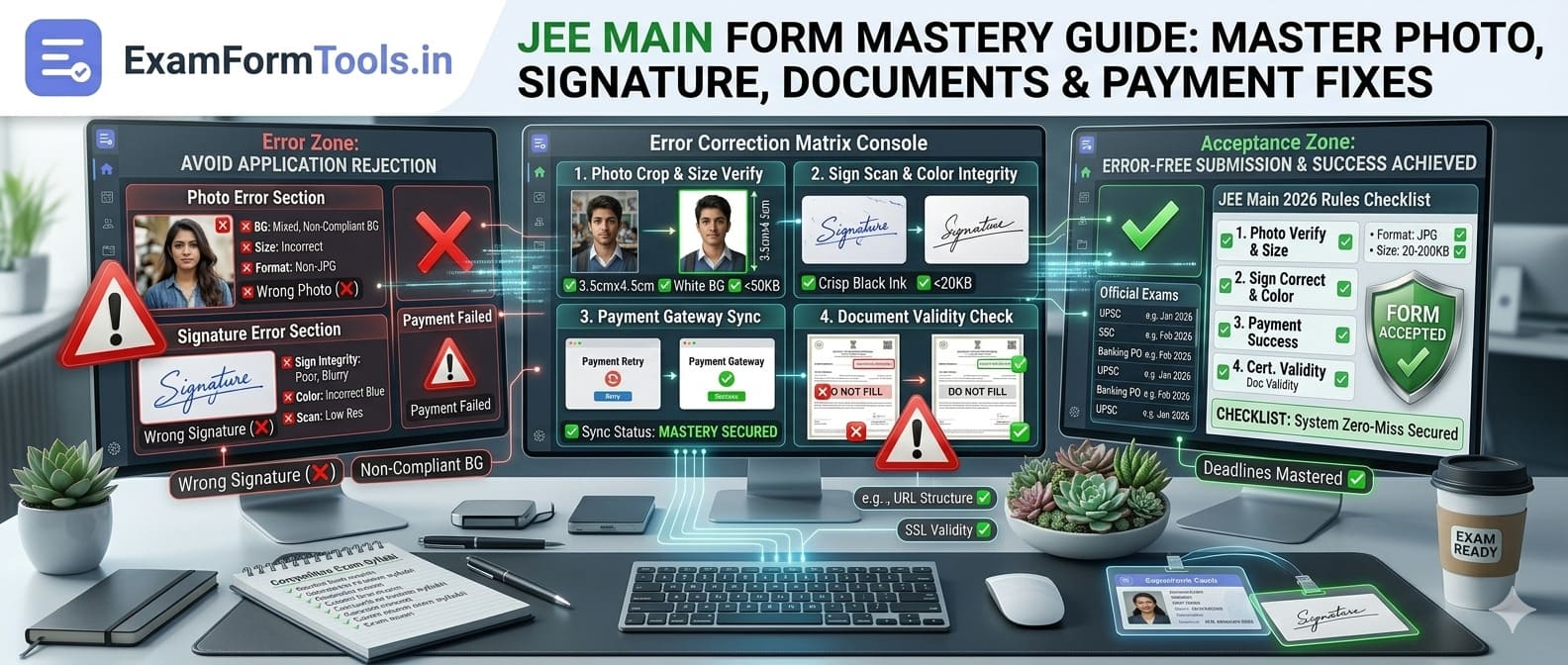
There’s a particular kind of stress that comes with JEE Main form filling, and I’ve seen it play out differently than you’d expect. Students who can solve complex integration problems in under three minutes somehow panic when faced with dropdown menus and upload buttons. I remember coaching a student last year, brilliant at Physics, completely rattled by his application form. He’d spent months perfecting problem-solving strategies but treated the application like a last-minute formality.
JEE Main aspirants often plan preparation deeply, obsessing over rotation mechanics and organic reaction mechanisms, but application quality gets rushed. That is where avoidable trouble begins: wrong field entries that don’t match board certificates, category documents that were uploaded but don’t actually support the claim, payment showing success on the bank side but pending on the NTA portal.
This guide helps you reduce form risk before exam pressure rises, so you can submit confidently and get back to what actually matters: solving those PYQs and mastering weak chapters.
Before You Even Open the Portal: The Document Gathering Phase
Don’t underestimate this step. I know it sounds basic, but I’ve seen too many students scramble mid-application because they didn’t have something ready.
Here’s what you need physically present before you start:
Class 10 and 12 marksheets or passing certificates. Not photocopies you think might be accurate. The actual original documents or verified digital copies from the board portal. You’ll be entering details like roll number, passing year, percentage, school name with UDISE code. These details need to match character-for-character with what your board has on record. A single digit wrong in your Class 12 roll number can create verification nightmares later.
Category or EWS certificate if you’re claiming reservation. And I don’t mean an expired certificate from two years ago. It should be current, issued by the competent authority as specified in NTA guidelines, with all mandatory fields filled including your photograph, issuing officer’s signature and seal. The validity period should cover your current application date.
I know someone who uploaded an OBC certificate that was technically valid but issued by a Tehsildar when the guideline specifically required a SDM or above for their state. During document verification rounds, this caused delays and required a fresh certificate submission with explanation letters. Save yourself that hassle by reading the certificate requirements section in the information bulletin carefully.
Recent passport photo and clean signature image. By recent, I mean taken within the last three months. Your face might not change drastically, but your appearance does shift slightly, especially if you’ve changed hairstyle, grown facial hair, started or stopped wearing glasses regularly, or lost/gained weight. The photo on your application should match how you’ll look on exam day, because exam center staff do check.
Your signature should be the same style you’ll use when signing the attendance sheet at the exam center. Don’t upload a fancy artistic signature and then sign with a simple version at the center. Consistency matters.
Active email and mobile number that you actually check. This sounds obvious, but use your own email, not your cousin’s or your father’s office email that you access twice a month. NTA sends important updates, correction window notifications, and admit card alerts to this email. Similarly, use a mobile number that’s active and with you. If you’re using a parent’s number, make sure they forward you messages immediately.
Payment method ready: debit card, credit card, or net banking credentials. Check your card expiry date. Ensure your net banking profile is active and you remember your password. Call your bank if needed to confirm online transaction limits, some banks default to low limits that might not cover the application fee. It’s better to sort this out two days before filling the form than discovering it at the payment stage.
Fill directly from documents, not memory. Your memory might tell you that your school name is “DAV Public School”, but the UDISE database might have it registered as “D.A.V. Public School” with periods. That difference matters during automated verification checks.
Upload Quality Checks: Where Most Rejections Happen
Let me break down the two most common uploads that cause trouble: photo and signature.
Photo: The Technical Specifications That Actually Matter
JEE Main photo requirements are specific. Typically, they ask for a passport-size image with specific pixel dimensions and file size limits. Let’s say current requirements are similar to recent years: 10 KB to 200 KB, JPG/JPEG format, specific pixel dimensions like 3.5 cm x 4.5 cm at 200 DPI.
Plain background and clear face visibility. This isn’t just about aesthetics. The automated processing system NTA uses scans for background uniformity. A plain light-colored background, preferably white or very light gray, works best. No patterns, no gradients from uneven lighting, no objects visible in the frame.
I’ve seen rejections because a student took a photo at home with a white bedsheet as background, but the creases in the sheet created shadows that the system flagged. If you’re doing it at home, use a plain white wall section with even lighting, or better yet, get it done at a professional studio that handles government document photos regularly. They understand the technical requirements.
Face should occupy 70-80% of the frame. Not too close (where your face is cropped awkwardly) and not too far (where your face is a small part of a large white space). Your face from forehead to chin should be clearly visible, both ears should usually be visible unless you have long hair, and you should be looking directly at the camera.
Correct format and accepted file size. This is where technical problems creep in. If you take a photo with a modern smartphone, it’s probably 3-4 MB and 4000x3000 pixels. That needs to be resized and compressed to meet JEE Main requirements.
The mistake most students make: they use random online compressors that destroy quality to meet size limits. Instead, first resize the image to the required dimensions (use tools like Photoshop, GIMP, or even online tools like Photopea), then compress gradually until you’re within the size limit while maintaining clarity.
No heavy editing or social media compression. Don’t take a photo, upload it to Instagram for the filters, download it back, and use that. Social media platforms compress images aggressively and add artifacts. Similarly, don’t apply beautification filters, smoothing, or color adjustments. The photo should represent your natural appearance.
Signature: Simpler Than Photo, But Still Gets Rejected
The signature upload seems straightforward until you realize how many ways it can go wrong.
Dark ink, white paper, clean crop. Use a black or blue pen (check the bulletin for allowed colors) with good ink flow. Sign on a plain white sheet of paper with no lines or textures. Your signature should be your natural signing style, not artificially large or decorative.
After signing, scan or photograph it. The crop should include just the signature with small margins around it, no large white spaces, no paper edges showing at odd angles.
Natural style matching later verification. Your uploaded signature will be compared with the signature you make on the attendance sheet at the exam center. They should look like they’re made by the same person. Don’t upload a carefully practiced perfect version if you normally sign with a quick scribble.
I heard about a student who uploaded a very neat, slowly-drawn signature but at the exam center signed quickly as he normally does. The invigilator flagged the mismatch and it took 15 minutes of explanation and identity verification before he was allowed to sit. Fifteen minutes of stress he didn’t need right before the exam.
Correct orientation before upload. Check that your signature isn’t tilted, rotated, or flipped. This sounds basic, but I’ve seen uploaded signatures that were sideways because the student photographed them at an angle and forgot to rotate during editing.
The Top 5 JEE Main Form Errors I’ve Seen Repeatedly
These are not hypothetical. These are actual errors I’ve encountered while helping students over multiple JEE cycles.
Error 1: Name Mismatch with Board Records
This is the most common and potentially most problematic error. Your name on the JEE Main application must match exactly, character for character, with your Class 10 and Class 12 board certificates.
Not similar. Not close enough. Exact match.
“Rajesh Kumar” on your marksheet should be “Rajesh Kumar” on your application, not “Rajesh” or “R. Kumar” or “Rajesh Kumarr” with an extra ‘r’ because of a typing error.
I’ve seen students use their commonly known name instead of their official name. If your certificates say “Mohammad Abdullah” but everyone calls you “Abdullah” and you entered just “Abdullah” in the application, that’s a mismatch.
Check spelling, initials, surname spelling, spacing, and even the order of names. Some boards list “First Name Last Name”, others list “Last Name First Name”. Match the exact format.
Error 2: Wrong Passing Year or Appearing Year Selection
There’s usually a dropdown where you select whether you passed Class 12 or you’re appearing. Students who are currently in Class 12 and will appear in the board exams should select “Appearing”, not “Passed”.
But here’s where confusion happens: if you’re a dropper who passed Class 12 last year and are now appearing for JEE again, you should select “Passed” and enter your actual passing year, not “Appearing”.
Similarly, for Class 10, if you passed in 2023, don’t enter 2024 by mistake. It sounds simple, but under pressure, these errors happen.
Error 3: Category Selected Without Valid Supporting Document
If you’re selecting SC, ST, OBC-NCL, EWS, or PwD category, you MUST have a valid certificate to support that claim. You can’t select a category just because you’re planning to get the certificate later.
I’ve seen students select OBC thinking “my father will get the certificate next week” and then struggling during document verification because the certificate wasn’t ready or was issued after the application date.
The category certificate should be issued before you apply and should be valid as per the norms specified by NTA for that cycle. For OBC-NCL, the certificate validity is usually for the current financial year. For EWS, similar validity rules apply. Check the information bulletin carefully.
And here’s a critical point: if you select a category, you might need to provide the certificate at multiple stages, not just once. During application, during counseling, during document verification, during admission. Make sure your certificate is valid throughout this period.
Error 4: Uploaded Screenshot Instead of Original File
This is surprisingly common and incredibly frustrating because it’s entirely avoidable. Students take a screenshot of their photo or certificate, upload that screenshot image, and then wonder why it got rejected.
Screenshots have lower resolution, often include parts of the screen interface, and don’t meet the format or dimension requirements. Always upload the original image file or the properly scanned document, not a screenshot of it.
Error 5: Payment Completed But Status Shows Pending
This is the one that causes the most panic because it involves money and creates uncertainty about whether the application is actually submitted.
What happens: You complete payment, your bank sends you an SMS saying “₹X debited”, you see a payment success page, but when you check your application dashboard, the payment status shows “Pending” or “Processing”.
This usually happens due to a communication lag between the payment gateway and the NTA database. It can take anywhere from 15 minutes to 24 hours for the status to update.
Payment Mismatch Handling: What to Do When Money is Gone But Form Shows Pending
Let me walk you through the exact steps because this situation causes disproportionate stress.
Step 1: Wait for the payment sync window (usually 2-4 hours).
I know this is hard when you’re anxious, but most payment sync issues resolve automatically within a few hours. The payment gateway batches transactions and syncs with the application portal at regular intervals.
Don’t immediately assume something went wrong. Close the browser, go do something else for 2-3 hours, come back and check.
Step 2: Recheck your dashboard status using proper login.
Log out completely, clear browser cache, restart browser, log in fresh and check the payment status. Sometimes it’s just a display issue where the page isn’t refreshing properly.
Check the “Payment History” or “Transaction Status” section if available. This section often updates faster than the main dashboard.
Step 3: Verify from your bank statement or payment gateway account.
Log into your net banking or check your SMS/email from the bank. Confirm that the amount was actually debited. Note down the transaction ID, payment reference number, and transaction timestamp.
Sometimes what looks like a success page is actually a pending transaction that later fails, and the amount gets auto-refunded in 5-7 days. Confirm the actual debit before panicking.
Step 4: Avoid immediate repeated payments unless absolutely necessary.
This is crucial. Don’t make another payment immediately thinking the first one failed. You might end up paying twice and then needing to request a refund, which is a lengthy process.
Wait at least 24 hours and give the system time to sync. If after 24 hours the status still shows pending despite confirmed debit, only then consider whether you need to make another payment attempt (and even then, check with NTA helpline first).
Step 5: Contact official NTA support with transaction details if unresolved beyond 24-48 hours.
If 48 hours have passed, your bank shows debit, but the portal still shows pending, contact NTA helpline. Have ready:
- Your application number or registration number
- Transaction ID from bank
- Payment timestamp
- Screenshot of bank statement showing debit
- Screenshot of application portal showing pending status
NTA support can manually verify and update the status or guide you on whether to make a fresh payment.
Always save payment screenshots and transaction reference numbers immediately after payment. Don’t think “I’ll screenshot later if needed”. Do it right away. Screenshot the payment success page, the transaction ID, the amount debited confirmation, everything. Save these in a dedicated folder.
Correction Window: Use It Wisely, Not as Your Default Plan
JEE Main provides a correction window typically 2-5 days after the application deadline. During this window, you can edit certain fields (not all) if you made genuine errors.
But here’s the thing: correction windows are not meant to be your primary plan. They’re a safety net for genuine mistakes discovered after submission.
Why you shouldn’t rely on correction windows:
They’re short and high-traffic. Imagine millions of JEE aspirants trying to access the same portal during a 3-day window. The portal slows down, sometimes crashes, and you’re left stressed trying to load the page.
Not all fields are editable. Some critical fields like name, date of birth, category might not be correctable at all, or might require physical document submission and verification, which is a lengthy process.
You’re correcting under time pressure. During the correction window, you’re also usually in the middle of preparation. Taking time out to log in, make corrections, verify changes, and ensure they saved properly is a distraction you don’t need.
That said, if you do need to use the correction window, prioritize like this:
Priority 1: Identity details if allowed (name, date of birth, parent names). These are the most critical because any mismatch here can lead to application rejection or problems during hall ticket download.
Priority 2: Category and eligibility entries. If you selected the wrong category or made an error in qualification details that affect your eligibility, fix these urgently.
Priority 3: Document re-uploads if they were rejected. If your photo or signature was rejected during scrutiny, the correction window is when you upload corrected versions.
Priority 4: Contact details (email, mobile). Important so you receive communications, but less critical than identity fields.
Priority 5: Exam city preferences. Useful for convenience, but doesn’t affect eligibility, so lowest priority.
During correction window:
- Log in during off-peak hours (early morning 6-8 AM or late night 11 PM-1 AM) when traffic is lower
- Make one set of corrections, verify them thoroughly, and submit
- Download the corrected confirmation page and compare with your previous version to ensure changes were saved
- Don’t make multiple correction attempts unless necessary
Correction windows are useful, but first-time clean submission remains the safest and least stressful approach.
The Submission Routine That Actually Works
Let me describe a routine that minimizes errors and stress. I’ve recommended this to dozens of students and it has consistently worked.
Phase 1: Fill in one focused session (60-90 minutes).
Set aside a specific time when you’re not tired, not in a hurry, and have no other commitments. Not at midnight on deadline day when you’re sleepy. Not during a break between coaching classes when you’re rushed.
Choose a time when your mind is alert. For most students, this is mid-morning (10 AM-12 PM) or late afternoon (4-6 PM).
Keep all documents physically next to you: marksheets, certificates, photo and signature files in a folder, bank card or net banking credentials ready.
Fill the form section by section. Don’t jump around. Personal details, then academic details, then qualification details, then uploads, then exam preferences, then payment.
Phase 2: Save as draft and take a 15-minute break.
Most applications allow you to save as draft and return later. Do that. Don’t complete and submit in the same session.
Take a break. Walk around, drink water, rest your eyes. Come back with fresh perspective.
Phase 3: Do one full verification pass (20-30 minutes).
This is the phase where you catch errors. Review every single field you filled. Not a quick glance. Read each field carefully, compare with your source document, verify it’s correct.
Check that uploaded photos and signatures are displaying correctly in the preview. Try viewing them on full screen to check clarity.
Phase 4: Submit and immediately download confirmation (5 minutes).
After verification, submit. Complete the payment. Wait for the confirmation page to load completely. Download the PDF confirmation. Screenshot the application number page.
Phase 5: Post-submission verification (15 minutes, done within 2-6 hours of submission).
Return to the portal after a few hours. Log in, go to your dashboard, download the application preview PDF again if available, and do a line-by-line check.
This second check catches things you might have missed immediately after submission because of submission stress.
Phase 6: Archive confirmation PDF and payment proof in multiple locations.
Email the PDF to yourself. Save to Google Drive or OneDrive. Save a copy on your computer. Save one on your phone. Print one physical copy if possible and keep it in your document file.
When admit card time comes, you’ll need your application number. When counseling opens, you might need payment proof. Having multiple backups ensures you’re never scrambling to find these documents.
Field-by-Field Verification: The 15-Minute Safety Check
This is your systematic final check before hitting submit. I’ve turned this into a checklist format that you can follow literally.
Open your filled application form. Start from the top. Go through this sequence:
Section 1: Personal Identity Details (5 minutes)
- Full name: Match with Class 10 marksheet. Character by character. Check spelling.
- Father’s name: Match with documents. Check spelling, especially if it’s a long or unusual name.
- Mother’s name: Same. Check spelling carefully.
- Date of birth: Match with Class 10 marksheet. Verify date, month, and year. Easy to mix up day and month especially in DD/MM/YYYY format.
- Gender: Confirm it’s correct.
- Nationality: Confirm.
- Aadhaar number (if used): Double-check you didn’t transpose any digits.
Section 2: Academic Records and Passing Years (3 minutes)
- Class 10 board: Confirm (CBSE, ICSE, State Board, etc.)
- Class 10 roll number: Match exactly with marksheet. Don’t skip zeros or mix up letters and numbers.
- Class 10 passing year: Confirm.
- Class 10 percentage/CGPA: Verify.
- Class 12 board: Confirm.
- Class 12 roll number: Match with marksheet if passed, or provisional number if appearing.
- Class 12 status: Passed or Appearing. This is critical, choose correctly.
- Class 12 passing year or expected passing year: Verify.
Section 3: Category and Reservation Claims (2 minutes)
- Category selected: General, SC, ST, OBC-NCL, EWS, etc. Confirm this matches your certificate.
- PwD status: If applicable, confirm you’ve selected correctly and have valid certificate.
- Certificate upload: If you uploaded category certificate, check that the uploaded file is the correct one and is displaying properly in preview.
Section 4: Contact Details (1 minute)
- Email address: Type it out character by character mentally to check for typos.
- Mobile number: Confirm all 10 digits.
- Address: Verify it’s complete and correct.
Section 5: Upload Previews (2 minutes)
- Photo preview: Click and view full size. Check clarity, check it’s not rotated oddly, check background looks plain.
- Signature preview: Click and view full size. Check it’s your signature, check orientation.
- Other document previews: If you uploaded any other certificates or documents, verify they’re displaying correctly.
Section 6: Exam Preferences and Payment (2 minutes)
- Exam city choices: Verify the cities you selected are in the order you want.
- Exam paper preference: If there’s an option between Paper 1 (B.E./B.Tech) and Paper 2A/2B (B.Arch/B.Planning), confirm you selected correctly.
- Payment status: After payment, verify it shows success or completed, not pending.
- Fee amount: Verify the amount paid matches the required fee for your category.
This sequence catches most high-impact mistakes in about 15 minutes. It’s 15 minutes that can save you hours of stress and potential rejection problems later.
Practical Backup and Recovery Setup: Your Documentation System
Think of this as your application insurance policy. If something goes wrong, if there’s a dispute, if you need to prove something later, proper documentation saves you.
Create a folder on your computer and on your phone called “JEE Main 2026 Application” or similar with the year and exam name.
Inside this folder, create subfolders:
Subfolder 1: “Source Documents” - Keep copies of your Class 10 marksheet, Class 12 marksheet/provisional certificate, category certificate, PwD certificate if applicable. Save as PDFs with clear names like “Class10_Marksheet_2023.pdf”.
Subfolder 2: “Photos and Signature” - Keep original high-quality versions of your photo and signature, and also the final compressed versions you uploaded. Name them clearly like “JEE_Photo_Original.jpg”, “JEE_Photo_Final_Uploaded.jpg”, “JEE_Signature_Final.jpg”.
Subfolder 3: “Application Screenshots” - As you fill the form, take screenshots of each page after filling. This gives you a record of what you entered. Name them by section: “01_Personal_Details.png”, “02_Academic_Details.png”, “03_Uploads.png”, etc.
Subfolder 4: “Payment Proof” - Screenshot of payment success page, screenshot of bank SMS, screenshot of transaction ID, PDF of payment receipt if generated. Save everything related to payment here.
Subfolder 5: “Final Confirmation” - The confirmation PDF downloaded after submission, screenshot of application number, screenshot of dashboard showing submitted status. Save multiple copies.
Subfolder 6: “Helpdesk Communications” - If you contacted NTA helpline, submitted any ticket, sent any email, received any response, save all of that here with dates in filenames.
If you have this folder organized, and something goes wrong, you can immediately provide evidence. You’re not scrambling trying to remember what you entered or searching through hundreds of gallery photos to find your payment screenshot.
And crucially: back this folder up in cloud storage (Google Drive, OneDrive, Dropbox, whatever you use) immediately after submission. If your computer crashes or your phone is lost, you still have access.
The Psychology of Form Filling: Managing Stress and Avoiding Panic Mistakes
This might seem out of place in a technical guide, but from experience, I can tell you that psychological stress causes more form errors than technical confusion.
When you’re stressed, you make mistakes. You misread fields, you click the wrong dropdown option, you skip verification steps, you rush through payment without checking.
Here’s how to manage the mental side:
Separate form-filling stress from exam-prep stress. Your JEE Main success depends on your Physics, Chemistry, and Math skills. The application form is just an administrative task. It’s important to do correctly, but it’s not related to your academic capability. Don’t let form problems make you feel like you’re failing at JEE itself.
Time-box your form filling. Decide you’ll spend 2 hours on it. Not more, not less. Don’t let it consume your whole day, but also don’t rush through it in 20 minutes.
Ask for help without feeling embarrassed. If you’re confused about a field, ask a parent, a teacher, a senior who’s done this before. There’s no shame in asking. The shame is in making an avoidable mistake because you were too proud to ask.
If something goes wrong, remember it’s usually fixable. Uploaded wrong photo? There’s a correction window. Payment pending? It usually syncs within 24 hours. Server crash during submission? The portal will be back up, and the deadline usually gets extended for such issues.
Very few form mistakes are irreversible disasters. Most are fixable with some time and proper process.
Take breaks during filling. If you’ve been staring at the form for 45 minutes and your eyes are glazing over, take a 10-minute break. Walk around, stretch, drink water, come back fresh.
Avoid deadline day submission unless absolutely necessary. The closer you get to the deadline, the higher the traffic, the slower the portal, the more the stress. Submit at least 3-5 days before deadline when servers are relatively free.
Common Myths and Misconceptions About JEE Main Application
Let me bust a few myths I’ve heard repeatedly:
Myth 1: “The correction window is for fixing anything, so I can be casual during initial filling.”
False. The correction window has limitations. Some fields can’t be corrected at all, others require document proof, and the window itself is short and high-traffic. Treat initial submission as your only chance to get it right.
Myth 2: “As long as my photo looks recognizable, quality doesn’t matter.”
False. If your photo doesn’t meet technical specifications (size, dimensions, format), it gets auto-rejected by the system before any human looks at it. Quality and specs both matter.
Myth 3: “Payment success on bank side means application is submitted.”
False. Payment success is one step. You must complete the form submission process and receive an application number. Just paying the fee doesn’t submit your application.
Myth 4: “I can use my friend’s photo or an old photo, they won’t check strictly.”
Extremely false and dangerous. Photos are checked during exam center entry. Mismatched photos can lead to debarment. Always use your own recent photo.
Myth 5: “Category certificate from years ago is still valid.”
Depends. For OBC-NCL and EWS, certificates have validity periods (usually within the current financial year). For SC/ST, older certificates might be valid, but check the specific requirements in the bulletin. When in doubt, get a fresh certificate.
What Happens After You Submit: The Waiting Period Strategy
You’ve submitted your application, paid the fee, downloaded confirmation. Now what?
Week 1 after submission: Verify your application status regularly. Check that payment is showing as “Success” on dashboard. Download and save any additional documents the portal generates (like application summary PDF).
Weeks 2-3: Correction window usually opens during this period. Check official website and your email daily for correction window notifications. If you need to make corrections, do it on the first day of the correction window during off-peak hours.
Weeks 3-4: Scrutiny period. NTA reviews uploaded documents. If any documents are rejected, you’ll be notified via email and SMS. Respond immediately if any action is required.
4-6 weeks after submission: Admit card release period. Keep checking the official website. Download your admit card as soon as it’s released. Verify all details on the admit card match your application. Check exam center allotment, exam date and shift, personal details, photo and signature printing quality.
If you notice any discrepancy in admit card: Contact NTA helpline immediately. Don’t wait until exam day. Issues like name mismatch or photo not printing clearly need to be resolved before you reach the exam center.
During this waiting period, don’t let application anxiety distract you from preparation. You’ve done your part on the application side. Trust that if there’s any issue, NTA will contact you. Focus your energy on practicing problems and revising concepts.
Final Thoughts: Application is the Gateway, Preparation is the Journey
I want to end with perspective because I’ve seen students get so consumed by application stress that they lose sight of what matters.
JEE Main is fundamentally a test of your understanding of Physics, Chemistry, and Mathematics. Your score depends on how well you solve problems on exam day. The application form is just the gateway that gets you to that exam hall.
Yes, you need to fill it correctly. Yes, you should be careful and thorough. But once you’ve submitted and verified, let it go. Don’t keep worrying about whether your photo will get rejected or whether your signature matched properly. You’ve done your due diligence. Now shift your focus back to where it counts: solving numerical problems in Mechanics, balancing redox reactions, understanding coordinate geometry.
Strong application discipline prevents administrative distractions and keeps your focus on preparation. But the keyword is “discipline”, not “obsession”. Be systematic about the form, be thorough, but then move on.
Your JEE Main success story will be about the months you spent mastering rotation and thermodynamics, not about how perfectly you compressed your photograph.
Do the form right, do it once, verify twice, submit confidently, and then get back to what you’re actually preparing for. That’s the approach that works.
All the best for JEE Main 2026. Fill smart, prepare hard, and perform well.